
“Danger, Will Robinson!” For those that remember the TV show “Lost in Space,” these words often ring true in the sometimes confusing world of cyberspace. When users navigate through your site you can help avoid those fateful words with “you are here” waypoints. This article shows how to automatically highlight menu items that correspond to the current page using CSS and XHTML. Using CSS avoids the need for complex JavaScript or PHP/JSP scripting which simplifies maintenance and improves performance.
Highlighting Methods
There are a number of ways to highlight the current page in menu items, namely XSSI, with scripting (PHP, JSP, etc.), with CMS template logic, and CSS.
XSSI Active Tab Highlighting
You can highlight the current page with XSSI as we use in WebSiteOptimization.com’s navigation (see Figure 1):
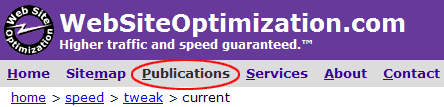
Figure 1: Website Optimization XSSI Highlight Example
The XSSI technique uses dynamically assigned “act”ive classes and simplified CSS to minimize the amount of code.
<!--#include virtual="/css/css.html" -->
</head><body>
<!--#include virtual="/css/navmain.html" -->
<!--#include virtual="/cgi-bin/breadcrumb.pl" -->
... navmain.html snippet below ...
<!--#if expr="(${DOCUMENT_URI} = /^\/sitemap\/.*/)" -->
<a class="but" href="/">Home</a>
<a class="but act" href="/sitemap/">Sitemap</a> ...
<a class="but" href="/services/">Services</a> ...
...
<!--#elif expr="(${DOCUMENT_URI} = /^\/services\/.*/)" -->
<a class="but" href="/">Home</a>
<a class="but" href="/sitemap/">Sitemap</a> ...
<a class="but act" href="/services/">Services</a>...
Here we use XSSI to assign the “act”ive class to pages that fall within directories like /publications/ or /sitemap/. We parse the DOCUMENT_URI environment variable to look for URL strings that begin with “/sitemap/” and “/services/” and add the “act”ive class dynamically. Then our CSS uses these rules to highlight the active tab:
#n a.but{padding:1px 6px;text-decoration:none;color:#390390;}
#n a.but:hover{color:#eee;background:#66339a}
#n a.act:hover,#n a.act{color:#333;background:#dcdcdc;}

This technique uses less code than the body ID/class method but requires that the XSSI be processed each time a page loads. A classic tradeoff of time for space. CNN.com uses a similar approach to assign a “current” class to the selected section:
<li><div><a href="/LAW/">Law</a></div></li>
<li class="current"><div><a href="/TECH/">Technology</a></div></li>
<li><div><a href="/TECH/space/">Science & Space</a></div></li>
Another method that doesn’t require XSSI or scripting is to use what has become known as the body ID/class method.
The BODY ID/Class Method of Highlighting Active Tabs
The body id/class method labels body tags and menu items with IDs or classes and uses grouped selectors to highlight the active tab by matching the body label with the menu label. Here’s an example from our sister site OptimizationWeek.com (see Figure 2).
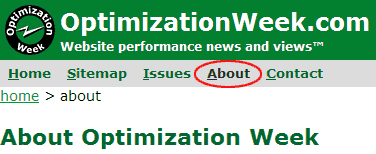
Figure 2: Optimization Week Current Page Highlight Example (Body ID/Class Method)
To auto-highlight your current navigation, first label your body tags with an ID or class that matches the section of the site (usually a directory) that the page is in.
<body class="ab">
We label all files in the “/about/” directory with the “ab” class. Note that we use a class here to label the body tags. We found that using an ID in the body did not work consistently in some older browsers. Next we label our menu items so we can target them individually thus:
<div id="n">
<a class="b" id="hm" href="/">Home</a> ...
<a class="b" id="ab" href="/about/">About</a> ...
</div>
Note that we use the “b”utton class to label menu items as buttons and an ID (“ab”) to label each unique menu item (in this case about). Now all we need is a CSS selector that matches up the body label with the appropriate menu label like this:
body.ab #n #ab, body.ab #n #ab a{color:#333;background:#dcdcdc;text-decoration:none;}
This code effectively highlights the “About” menu item and makes it appear dark gray. When you label the rest of the site and menu items, you’ll end up with a grouped selector that looks something like this:
body.hm #n #hm, body.hm #n #hm a,
body.sm #n #sm, body.sm #n #sm a,
body.is #n #is, body.is #n #is a,
body.ab #n #ab, body.ab #n #ab a,
body.ct #n #ct, body.ct #n #ct a{color:#333;background:#dcdcdc;text-decoration:none;}
For example when the user navigates to the sitemap section the .sm classed body tag matches the #sm menu option and triggers the CSS highlight of the “Sitemap” in the navigation bar.
AListApart.com Stylesheet Highlights
ALA uses a similar method to highlight the current page/section (see Figure 3).
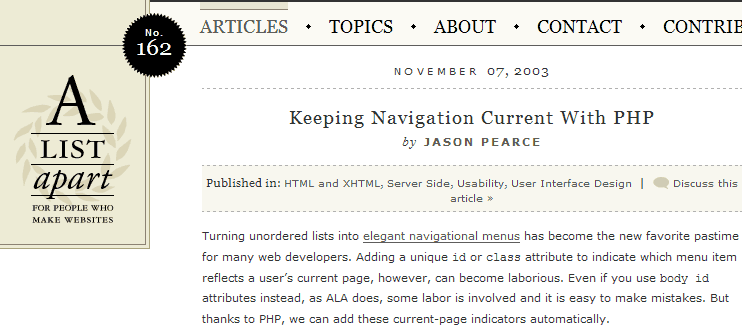
Figure 3: AListApart.com Current Page Highlight Example (CSS)
ALA uses the following code in their “base.css” stylesheet. Note the similarity to the code above, a grouped selector matching up the body class with the menu item ID name to highlight the active tab.
#navbar a:hover,
.articles #navbar #articles a,
.topics #navbar #topics a,
.about #navbar #about a,
.contact #navbar #contact a,
.contribute #navbar #contribute a,
.feed #navbar #feed a {
background: url(/pix/navbarlinkbg.gif) top left repeat-x; color: #555;
}
....
<body class="articles" onload="">
<ul id="navbar">
<li id="articles"><a href="/articles/" title="Articles">Articles</a></li>
<li id="topics"><a href="/topics/" title="Topics">Topics</a></li>
<li id="about"><a href="/about/" title="About">About</a></li>
<li id="contact"><a href="/contact/" title="Contact">Contact</a></li>
<li id="contribute"><a href="/contribute/" title="Contribute">Contribute</a></li>
<li id="feed"><a href="/feed/" title="Feed">Feed</a></li>
</ul>
Conclusion
With the body ID/class method you can use CSS to highlight the navigational item that matches the current page. This “you are here” waypoint helps orient and anchor the user to reduce confusion and increase usability. By using CSS instead of scripting to highlight the active tab you can save on maintenance costs and improve website performance.
Excellent Post, I think the only limitation of the first proposed method is the requirement of the XSSI extension installed along with Apache webserver.
Can I use this in on more than just the body tag?
I have sub menu’s I’d like to highlight as well.
Is that possible? I’ve tried just changing the body to tr or table but I cannot get it to work.
Thanks.
The BODY ID/Class Method is tricky and clutters your style sheet. And it does not provide away to centralize your menu to make maintenance easier. I know I can build the menu using JavaScript write statements, but this will prevent search engine from index my entire site. That’s why I’m sticking with the XSSI method, which I also use to #include the menu.
I have set up a menu using the Body.Class method and set it as an include. Great. But I also would like a secondary menu which similarly will highlight without having to manually alter the code on all the pages. How do I do that? It gets pretty confusing. Thanks
Regarding my question: perhaps I could assign id AND class to Body – Body id=”Products” Class=”Beachwear”, – then just alter the class for each different section of Products, workwear, casualwear etc. I think the Body/Class method is very simple and intuitive, but need to take it to a secondary menu. Yikes.
Now I am thinking why not use two classes for the body – one for the main nav and other for the second nav – then insert the appropriate two body classes on each html doc.